Viewing CHM Files Across The Network
Microsoft Security Update 896358
Back in the days of Windows XP, Microsoft released a security patch that makes it impossible to view CHM files that are stored on a network drive (as opposed to CHM files stored on your own computer). The help file will appear, but instead of the topic text you will see an error message "this page cannot be displayed". This restriction also affects Windows Vista and later, including Windows 10 and 11.
The security patch and its effects are fully described on Microsoft's web site at http://support.microsoft.com/kb/896358
If you trust all the computers on your LAN or intranet (and the people using them), you can lower the restrictions on the Local Intranet zone to allow CHM files to be displayed with the following steps:
1. Click Start, click Run, type regedit, and then click OK.
2. Locate and then click the following subkey:
HKEY_LOCAL_MACHINE\SOFTWARE\Microsoft\HTMLHelp\1.x\ItssRestrictions
If this registry subkey does not exist, create it.
3. Right-click the ItssRestrictions subkey, point to New, and then click DWORD Value.
4. Type MaxAllowedZone, and then press Enter.
5. Right-click the MaxAllowedZone value, and then click Modify.
6. In the Value data box, type 1, and then click OK.
7. Quit Registry Editor.
This works on Windows XP and Windows Vista. It used to work on Windows 7 and later. A further security patch rolled out for Windows 7 and later on 8 May 2018 has disabled this workaround. This is what is meant with "security updates to HTML Help" in KB4103718 and KB4103721.
Viewing Downloaded CHM Files
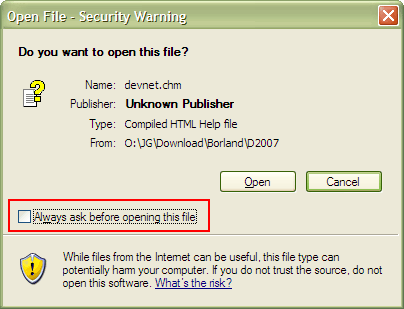 The security update may also prevent you from opening CHM files that you downloaded from the Internet, even if you saved them to your local hard disk. To resolve this problem, clear the "Always ask before opening this file" check box in the Open File-Security Warning dialog box, and then click Open. If you click Open without clearing the checkbox, the help file's table of contents will appear, but the body text will not.
Alternatively, in Windows Explorer, right-click the file that you want to open, click Properties, and then click Unblock. See http://support.microsoft.com/kb/902225/ for more information.
Enable Customers to Read Your Help Files
If your customers are having problems accessing your CHM files, you have the following options:
1. Make them aware of the issues involving the security update 896358
2. Make sure your software's installer installs CHM files locally rather than on the network. Then they will always work.
3. Use the WinHelp format instead of HTML Help (CHM). You can make this choice in Project Options in HelpScribble. WinHelp HLP files are not affected by this security issue. WinHelp files work out of the box on Windows 95, 98, ME, NT4, 2000, and XP. On Windows Vista, 7, 8, and 8.1, the WinHelp viewer is a separate download. Windows 10 and 11 do not support WinHelp.
About HelpScribble
Page last updated: 20 January 2022
Site last updated: 15 March 2024
Copyright © 1996-2024 Jan Goyvaerts.
All rights reserved.